This document presents the main screens and functions of the system.
The views display components and operational modules.
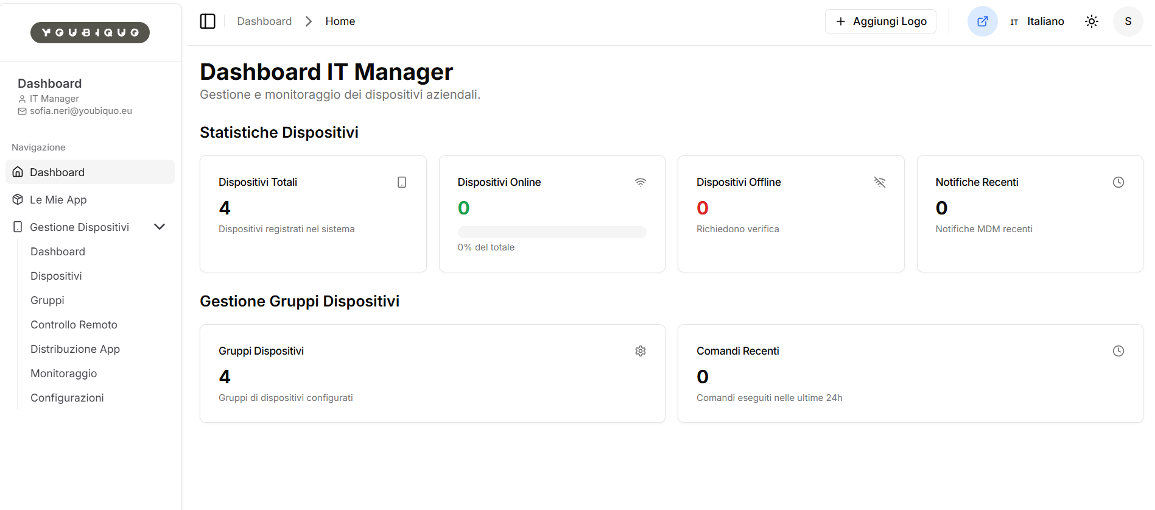 Home/Dashboard of the MDM system dedicated to managing XR headsets.
From here, the IT Manager user has a concise overview of the device fleet status and quick access to key functions (devices, groups, remote control, app distribution, monitoring, configurations).
Purpose:
Home/Dashboard of the MDM system dedicated to managing XR headsets.
From here, the IT Manager user has a concise overview of the device fleet status and quick access to key functions (devices, groups, remote control, app distribution, monitoring, configurations).
Purpose:
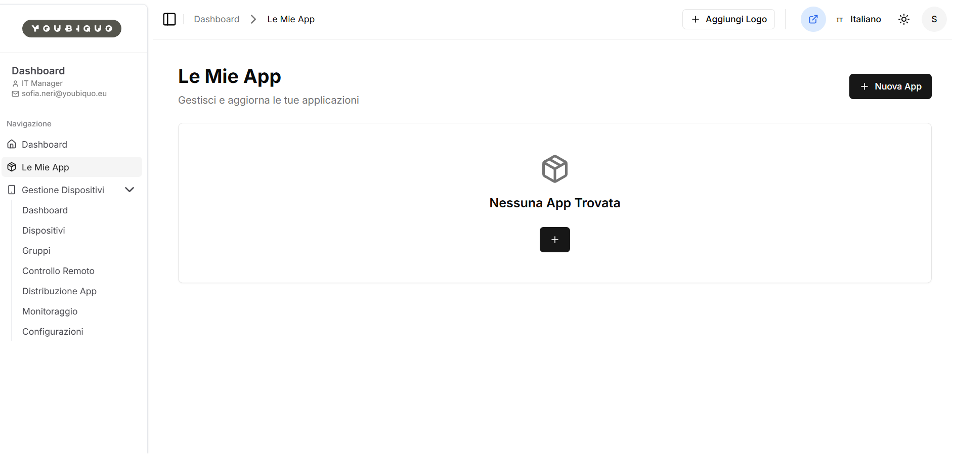 Management of the application catalog (XR apps) that the organization can upload, update, and make available for distribution to headsets (to individual devices or to groups).
Purpose:
Management of the application catalog (XR apps) that the organization can upload, update, and make available for distribution to headsets (to individual devices or to groups).
Purpose:
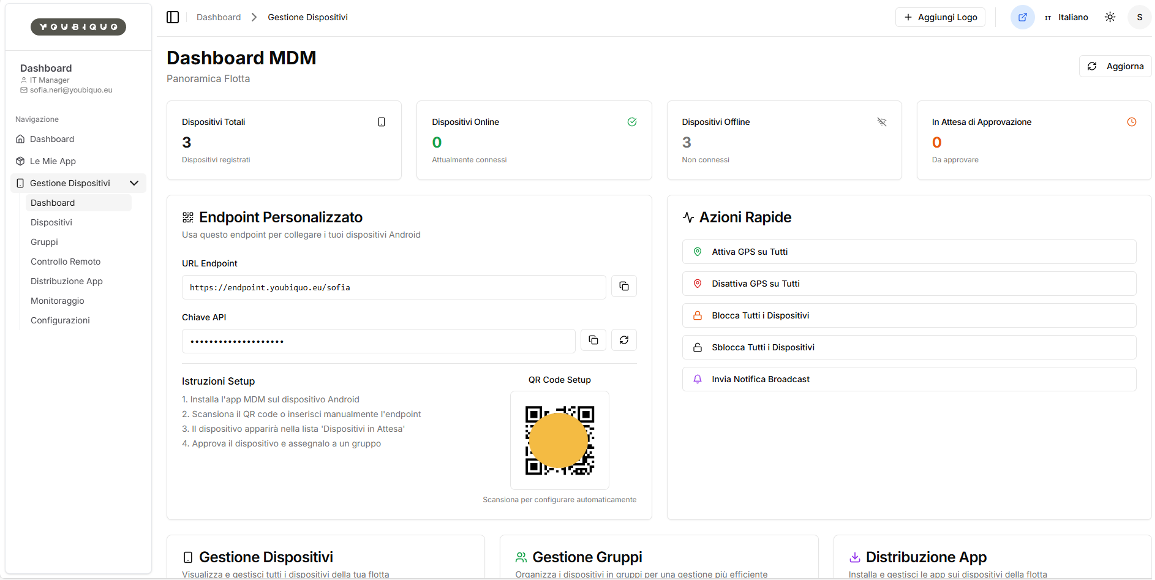 This is the operational dashboard of the MDM for the IT Manager: a summary view that combines:
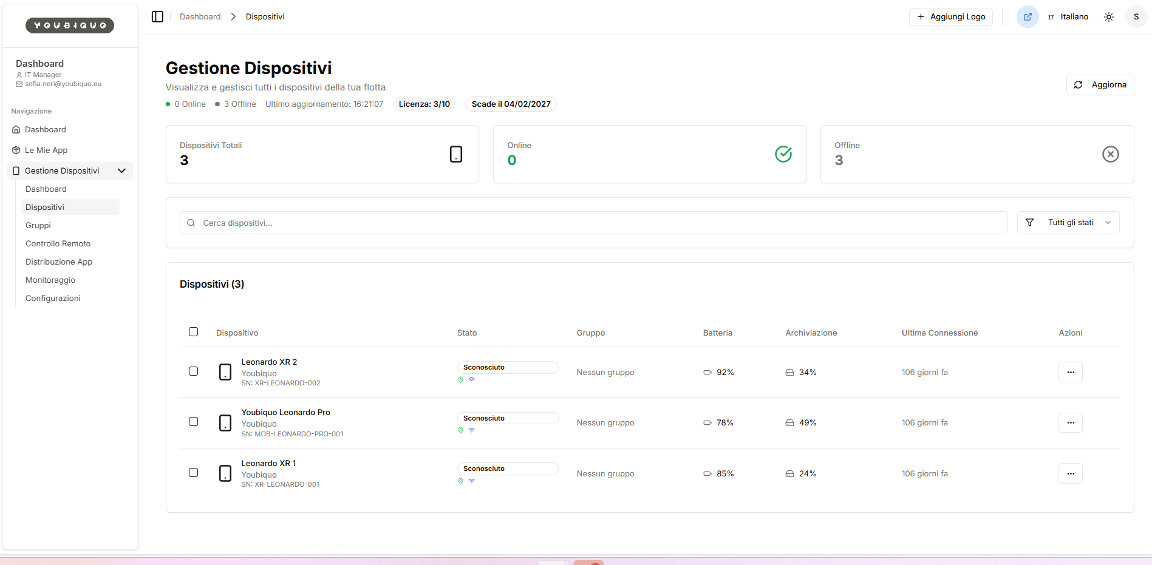 This is the MDM system section dedicated to managing the headset inventory (“device fleet”).
Here, the IT Manager can view all registered devices, monitor their status, and initiate operational actions (group assignment, commands, potential archival, etc.).
Purpose:
This is the MDM system section dedicated to managing the headset inventory (“device fleet”).
Here, the IT Manager can view all registered devices, monitor their status, and initiate operational actions (group assignment, commands, potential archival, etc.).
Purpose:
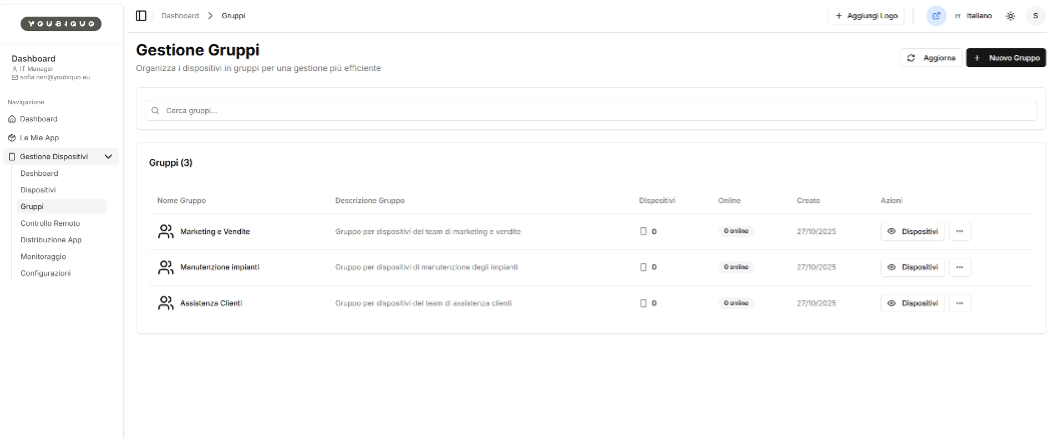 This is the MDM section that allows you to organize headsets into groups (e.g., classrooms, departments, teams, locations, training cohorts).
Groups are the operational unit for applying policies, configurations, app distribution, and commands to multiple devices simultaneously in a scalable way.
Purpose:
This is the MDM section that allows you to organize headsets into groups (e.g., classrooms, departments, teams, locations, training cohorts).
Groups are the operational unit for applying policies, configurations, app distribution, and commands to multiple devices simultaneously in a scalable way.
Purpose:
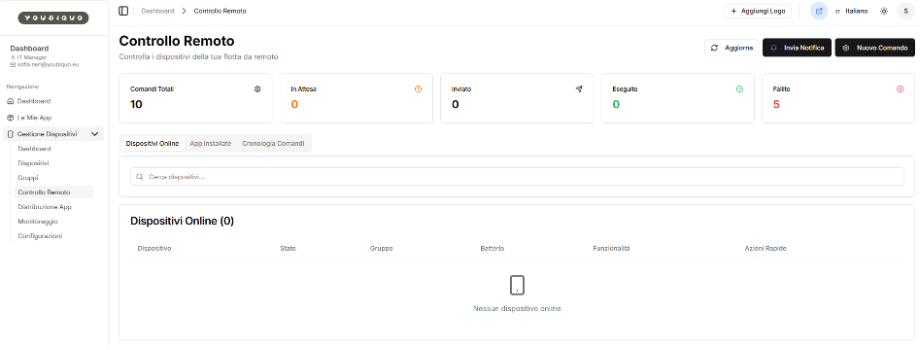 This is the MDM section dedicated to remote operational control of the fleet: from here, the IT Manager can send commands and notifications, check execution status (pending / sent / executed / failed), and verify online devices and history.
Purpose:
This is the MDM section dedicated to remote operational control of the fleet: from here, the IT Manager can send commands and notifications, check execution status (pending / sent / executed / failed), and verify online devices and history.
Purpose:
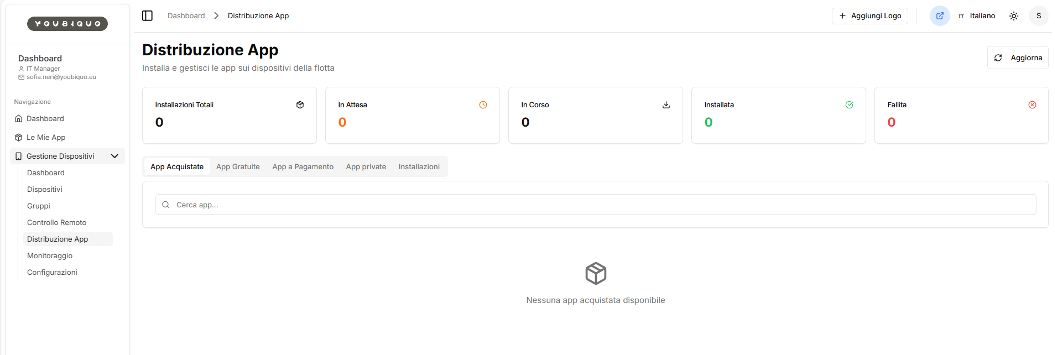 This is the MDM section dedicated to the controlled distribution of applications on XR headsets: from here, the IT Manager can select apps, decide where to install them (single device or group), and monitor installation status (pending / in progress / installed / failed).
Purpose:
This is the MDM section dedicated to the controlled distribution of applications on XR headsets: from here, the IT Manager can select apps, decide where to install them (single device or group), and monitor installation status (pending / in progress / installed / failed).
Purpose: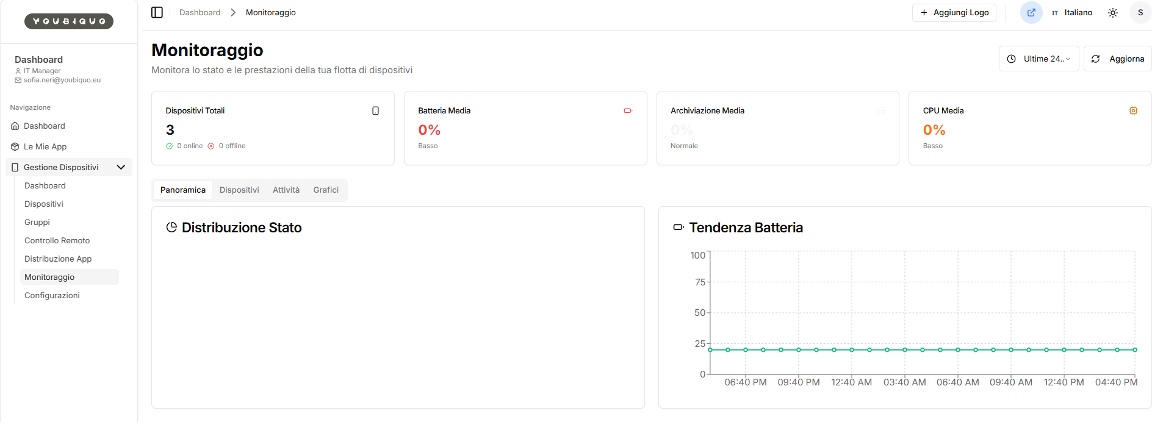 This is the MDM section that enables continuous monitoring of the status and performance of XR headsets: here, the IT Manager can view aggregate metrics, trends, and (in the other tabs) detailed per-device and per-activity/event breakdowns.
Purpose
This is the MDM section that enables continuous monitoring of the status and performance of XR headsets: here, the IT Manager can view aggregate metrics, trends, and (in the other tabs) detailed per-device and per-activity/event breakdowns.
Purpose
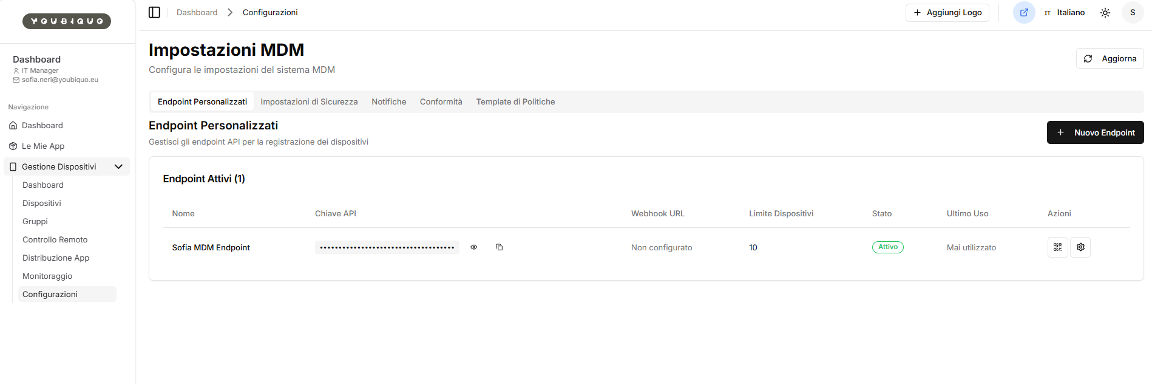 This is the central configuration area of the MDM: here, the IT Manager defines the system settings that enable and govern headset management (endpoint/API, security, notifications, compliance, and policy templates).
This is an “administrative” section, meaning it does not operate directly on individual headsets but is crucial for standardizing and controlling the entire device fleet.
Purpose
This is the central configuration area of the MDM: here, the IT Manager defines the system settings that enable and govern headset management (endpoint/API, security, notifications, compliance, and policy templates).
This is an “administrative” section, meaning it does not operate directly on individual headsets but is crucial for standardizing and controlling the entire device fleet.
Purpose
Screen 1 — IT Manager Home (MDM XR)
Home/Dashboard of the MDM system dedicated to managing XR headsets.
From here, the IT Manager user has a concise overview of the device fleet status and quick access to key functions (devices, groups, remote control, app distribution, monitoring, configurations).
Purpose:
- Quickly check the status of the headset fleet (total/online/offline).
- Identify anomalies quickly (offline status, notifications/alerts, failed commands).
- Quickly access operational functions: create groups, assign devices, distribute apps, apply configurations, and monitor.
What it displays
- Left Sidebar (Navigation)
- Dashboard: returns to the overview.
- My Apps: app catalog/management area (e.g., available or assigned XR apps).
- Device Management:
- Devices: list of registered headsets, details, status, actions.
- Groups: management of headset groups (classes, departments, locations, etc.).
- Remote Control: access to support/remoting functions
- App Distribution: publishing/assigning apps to devices or groups.
- Monitoring: device status and health, events, alerts.
- Configurations: policies and settings applicable to devices/groups.
- “Device Statistics” Section (KPIs)
- Total Devices (4): number of headsets registered on the platform.
- Online Devices (0): headsets currently connected/active.
- Offline Devices (0): unreachable headsets (flagged here as “require verification”).
- Recent Notifications (0): recent MDM events/alerts (e.g., errors, updates, compliance issues).
- “Device Group Management” Section
- Device Groups (4): number of configured groups (e.g., “Classroom 1”, “Classroom 2”, “Training”, “Lab”).
- Recent Commands (0): MDM commands executed in the last 24 hours (e.g., configuration pushes, app installations, reboots, etc.).
Screen 2 — My Apps
Management of the application catalog (XR apps) that the organization can upload, update, and make available for distribution to headsets (to individual devices or to groups).
Purpose:
- Centralize managed XR apps: provide a single point where IT uploads and maintains versions.
- Enable controlled distribution: apps uploaded here become available for distribution via the “App Distribution” section to groups or individual headsets.
What it shows
- Title: “My Apps”
Indicates the area for administering managed applications. - “+ New App” button (top right)
Initiates the process to add a new application (upload/registration). - “+” icon in the central box
Alternative shortcut for the same action: add the first app. - Left sidebar
Confirms navigation: Dashboard, My Apps, and device management modules (Devices/Groups/App Distribution, etc.).
Screen 3 — MDM Dashboard (Fleet Overview + Onboarding + Quick Actions)
This is the operational dashboard of the MDM for the IT Manager: a summary view that combines:
- Fleet status (online/offline/approvals),
- Onboarding setup (endpoint + API key + QR code),
- Global quick actions (bulk commands across all devices),
- Shortcuts to main modules (devices, groups, app distribution).
- Immediate control of fleet status (online/offline and devices awaiting approval).
- Guided and secure onboarding of headsets via endpoint + API key + QR code.
- Rapid management of operational situations using bulk commands (quick actions).
What it shows
1) Fleet KPIs
- Total Devices: 3 → number of registered headsets.
- Online Devices: 0 → headsets currently connected.
- Offline Devices: 3 → headsets not connected.
- Pending Approval: 0 → devices that have started enrollment but have not yet been approved by IT.
2) “Custom Endpoint” Panel (Setup / Enrollment)
This is the most important block for registering new devices in MDM.- Endpoint URL (e.g., https://endpoint.youbiquo.eu/sofia) + copy icon → address to which the device’s MDM app/agent connects for registration.
- API Key (masked) + copy/regenerate icons → credential required to correctly associate the device with the MDM instance.
- Setup Instructions (guided workflow):
- Install the MDM app on the Android device
- Scan the QR code or manually enter the endpoint
- The device will appear in the “Pending Devices” list
- Approve the device and assign it to a group
- QR Code Setup → enables rapid configuration and reduces errors (endpoint + pre-filled parameters).
3) “Quick Actions” Panel (Mass Commands)
Immediate actions applicable to the entire fleet:- Enable GPS on All Devices
- Disable GPS on All Devices
- Lock All Devices
- Unlock All Devices
- Send Broadcast Notification
Screen 4 — Device Management
This is the MDM system section dedicated to managing the headset inventory (“device fleet”).
Here, the IT Manager can view all registered devices, monitor their status, and initiate operational actions (group assignment, commands, potential archival, etc.).
Purpose:
- Inventory and identify headsets (name + serial number), maintaining a single, traceable list.
- Monitor device operational status and health:
- connectivity (online/offline/unknown),
- battery,
- storage,
- last connection time (useful for identifying “inactive” or unused devices).
- Manage headset governance:
- group assignment (e.g., classrooms, labs, teams),
- executing actions from the (…) menu,
- verifying license and coverage (3/10) to enable fleet scaling.
What It Displays
1) Header and Status Indicators
- Title: “Device Management” + description (“View and manage all devices in your fleet”).
- Summary Indicators:
- 0 Online / 3 Offline
- Last Updated (timestamp)
- License: 3/10 → number of managed devices vs. license limit
- Expires on 04/02/2027 → license/service expiration date
- “Refresh” Button → forces a data and device status refresh.
2) Section KPIs
- Total Devices: 3
- Online: 0
- Offline: 3
3) Search and Filters
- “Search devices…” bar → search by name, serial number, etc.
- “All statuses” filter → filter by status (online/offline/other).
4) Devices Table
Each row represents a headset with the following key metadata:- Device Name (e.g., Leonardo XR 2, Youbiquo Leonardo Pro, Leonardo XR 1)
- Vendor/Org (Youbiquo)
- Serial Number (SN) → unique inventory identifier
- Status (shown here as “Unknown”) with connectivity icons
- Group (here: “No group”)
- Battery (e.g., 92%, 78%, 85%)
- Storage (e.g., 34%, 49%, 24%)
- Last Connection (e.g., 106 days ago)
- Actions (…) → menu for operations on the individual device
Screen 5 — Group Management
This is the MDM section that allows you to organize headsets into groups (e.g., classrooms, departments, teams, locations, training cohorts).
Groups are the operational unit for applying policies, configurations, app distribution, and commands to multiple devices simultaneously in a scalable way.
Purpose:
- Segment the fleet into coherent groups (by team, department, course, classroom, or project).
- Manage at scale:
- assign devices to groups,
- distribute apps to all headsets in a group,
- apply common configurations/policies,
- Quickly monitor cluster status (number of devices and online count per group).
What it displays
1) Header and main commands
- Title: “Group Management” + description (“Organize devices into groups for more efficient management”).
- “Refresh” button → refreshes the group list and status.
- “New Group” button (+) → creates a new group (define name + description, followed by device association).
2) Ricerca
- “Search groups…” field → quick search by name or keyword.
3) “Groups (3)” Table
List of previously created groups:- Group Name (e.g., Marketing & Sales, Plant Maintenance, Customer Support)
- Group Description → purpose/context of the group
- Devices → number of headsets assigned to the group (here: 0 for all)
- Online → how many headsets in the group are currently online (here: “0 online”)
- Created → group creation date (27/10/2025)
- Actions:
- “Devices” button → opens the view of devices associated with the group
- “…” menu → advanced actions (typically: edit name/description, delete group, lock group, unlock group, etc.)
Screen 6 — Remote Control
This is the MDM section dedicated to remote operational control of the fleet: from here, the IT Manager can send commands and notifications, check execution status (pending / sent / executed / failed), and verify online devices and history.
Purpose:
- Manage remote operations in a centralized manner (commands and notifications) without physically accessing the headsets.
- Immediately verify device reachability (online/offline) before sending actions.
- Ensure traceability and control:
- know which commands were sent,
- which were executed,
- which have failed
- Support recurring IT tasks, typically:
- pushing configurations/policies,
- app installation/updating (via the “Installed Apps” tab),
- operational maintenance (via “New Command”),
- user communications (via “Send Notification”).
What it displays
1) Header and main commands
- Title: “Remote Control” with description (“Control your fleet devices remotely”).
- Buttons in the top right:
- Refresh → refreshes device and command status.
- Send Notification → sends messages/alerts to devices or groups (operational use: quick communications).
- New Command → creates/sends an MDM command.
2) KPI “Commands” (command queue status)
- Total Commands: 10 → total number of recorded commands (historical or current period).
- Pending: 0 → commands created but not yet processed/in queue.
- Sent: 0 → commands sent to the device but not yet confirmed.
- Executed: 0 → commands completed successfully.
- Failed: 5 → commands that failed to execute (e.g., device offline, timeout, errors).
3) Internal Navigation Tabs
- Online Devices (active tab)
- Installed Apps
- Command History
- view only reachable devices,
- check installation status,
- verify the audit trail of sent commands.
4) “Online Devices (0)” List
- “Search devices…” field
- Table with headers:
- Device, Status, Group, Battery, Capabilities, Quick Actions
Screen 7 — App Distribution
This is the MDM section dedicated to the controlled distribution of applications on XR headsets: from here, the IT Manager can select apps, decide where to install them (single device or group), and monitor installation status (pending / in progress / installed / failed).
Purpose:- Distribute apps centrally and uniformly across headsets (avoiding manual installations).
- Apply group-based logic: typically, the same app is deployed to an entire group (e.g., “XR Classroom”, “Training”, “Customer Care”).
- Monitor execution: view in real-time whether installations are:
- pending,
- in progress,
- completed,
- failed (and thus require troubleshooting).
- Manage fleet compliance: ensure all devices in a group have the correct and up-to-date apps.
What it shows
1) Header and refresh
- Title: “App Distribution” + description (“Install and manage apps across your headset fleet”).
- “Refresh” button → updates the installation status and app availability.
2) Installation KPIs (Deployment Status)
At the top, you’ll find a numerical summary of the installation cycle:- Total Installations: 0
- Pending: 0 → scheduled installations not yet started
- In Progress: 0 → installations currently running on devices
- Installed: 0 → successfully completed installations
- Failed: 0 → installations that were unsuccessful
3) Catalog Tab and App Types
Below the KPIs, you’ll find the app segmentation by type:- Purchased Apps
- Free Apps
- Paid Apps
- Private Apps
- Installations
- available apps list,
- installation status view.
4) Search
- “Search for apps…” field → searches within the apps list
Screen 8 — Monitoring
This is the MDM section that enables continuous monitoring of the status and performance of XR headsets: here, the IT Manager can view aggregate metrics, trends, and (in the other tabs) detailed per-device and per-activity/event breakdowns.
Purpose
- Obtain a “fleet health” overview: quickly determine if headsets are operational and operating within normal metric thresholds.
- Identify anomalies:
- low average battery (headsets not being recharged),
- critical storage (risk of freezes/instability),
- high CPU usage (possible anomalous processes or resource-heavy apps).
- Support preventive maintenance: intervene before a headset becomes unusable (e.g., full storage or degraded battery).
What it displays
1) Header + time range
- Title: “Monitoring” with description (“Monitor the status and performance of your device fleet”).
- Period Selector: “Last 24…” → sets the observation interval (e.g., last 24 hours).
- “Refresh” button → refreshes metrics and charts.
2) Aggregated KPIs
At the top are the main metrics calculated across the entire fleet:- Total Devices: 3 (with online/offline status shown below: currently shows 0 online / 0 offline, indicating either missing updated data or unreachable devices in this timeframe)
- Average Battery: 0% (displayed as “Low”)
- Average Storage: 0% (displayed as “Normal”)
- Average CPU: 0% (displayed as “Low”)
3) Monitoring Tabs
- Overview (active): dashboard with charts and status distributions.
- Devices: detailed metrics per individual headset.
- Activity: relevant events/logs/actions
- Charts: more analytical views
4) Graphical Sections
- Status Distribution: area designed to show device distribution by status (online/offline/caution/other). This area is empty in this screenshot.
- Battery Trend: time-series chart showing battery level trends.
Screen 9 — Configurations / Governance, Security, and Policies
This is the central configuration area of the MDM: here, the IT Manager defines the system settings that enable and govern headset management (endpoint/API, security, notifications, compliance, and policy templates).
This is an “administrative” section, meaning it does not operate directly on individual headsets but is crucial for standardizing and controlling the entire device fleet.
Purpose
- Enable and govern headset onboarding: the endpoint and API key are essential for registering new devices in a controlled manner.
- Apply governance and control
- Monitor usage (“Last Used”) for audit purposes,
What it displays
- “Active Endpoints” section
- Name
- API Key (masked) + icons:
- eye → show/hide key
- copy → copy key for use in configurations or integrations
- Webhook URL → optional endpoint for sending notifications/events to external systems
- Device Limit (e.g., 10) → maximum number of devices managed per endpoint/license
- Status (e.g., “Active”) → indicates the endpoint is enabled
- Last Used → tracks usage
- Actions (icons on the right, typically for endpoint management, QR code generation, or configuration)
- “+ New Endpoint” button → creates a new endpoint