
Interaction Sample Project
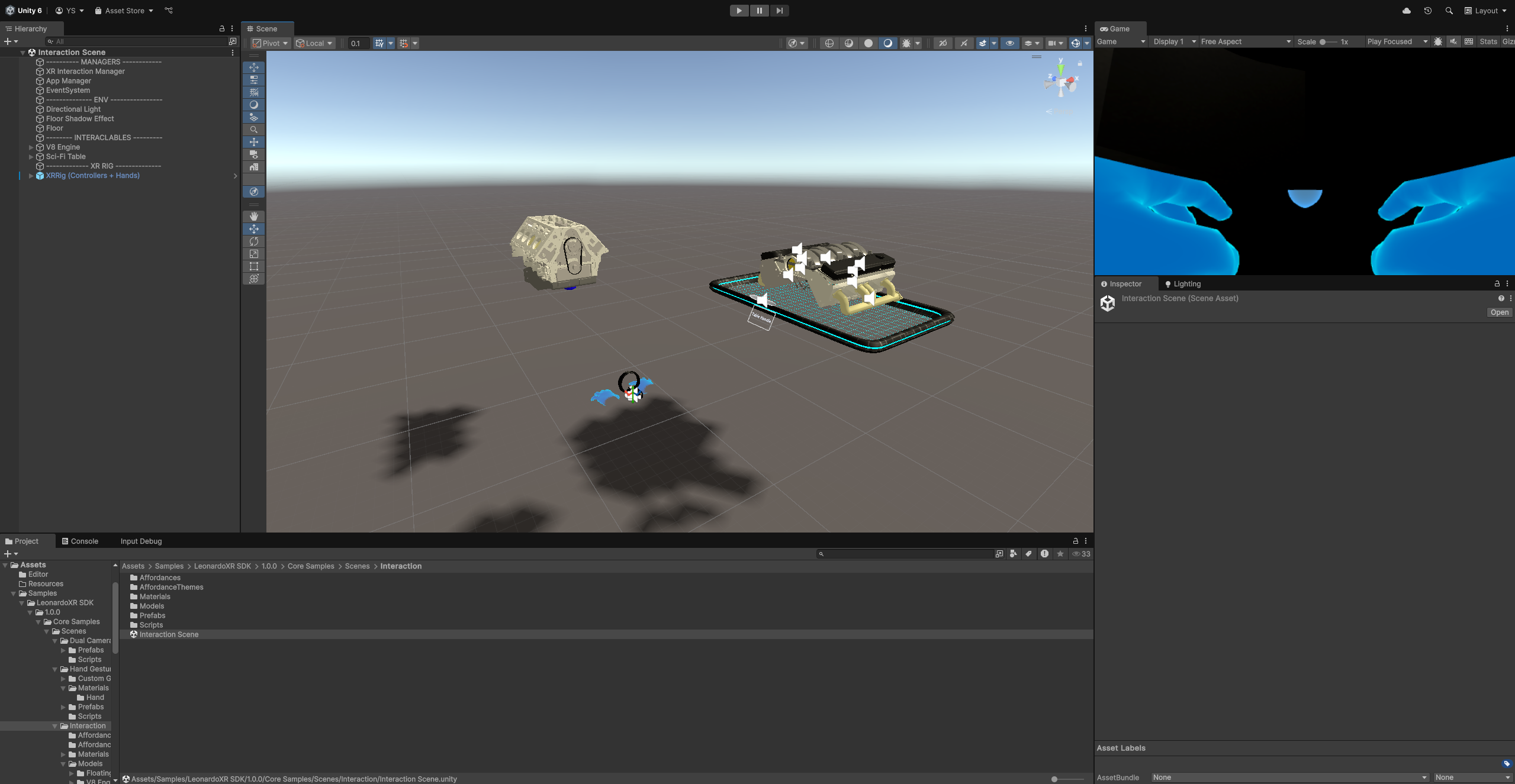
Open the Assets folder and navigate inside LeonardoXR SDK/1.0.0/Core Samples, here you will find different sample scenes and assets showcasing LeonardoXR’s different features.
For example the Interaction Scene scene is a simple interaction scene, pre-configured for controller/hands usage, in which the player will assemble an engine.

# Build and Run
Now, let’s build and run our first app on the LeonardoXR.
Make sure you have enabled Developer Mode on the LeonardoXR.
Connect the LeonardoXR to your computer with a USB cable.
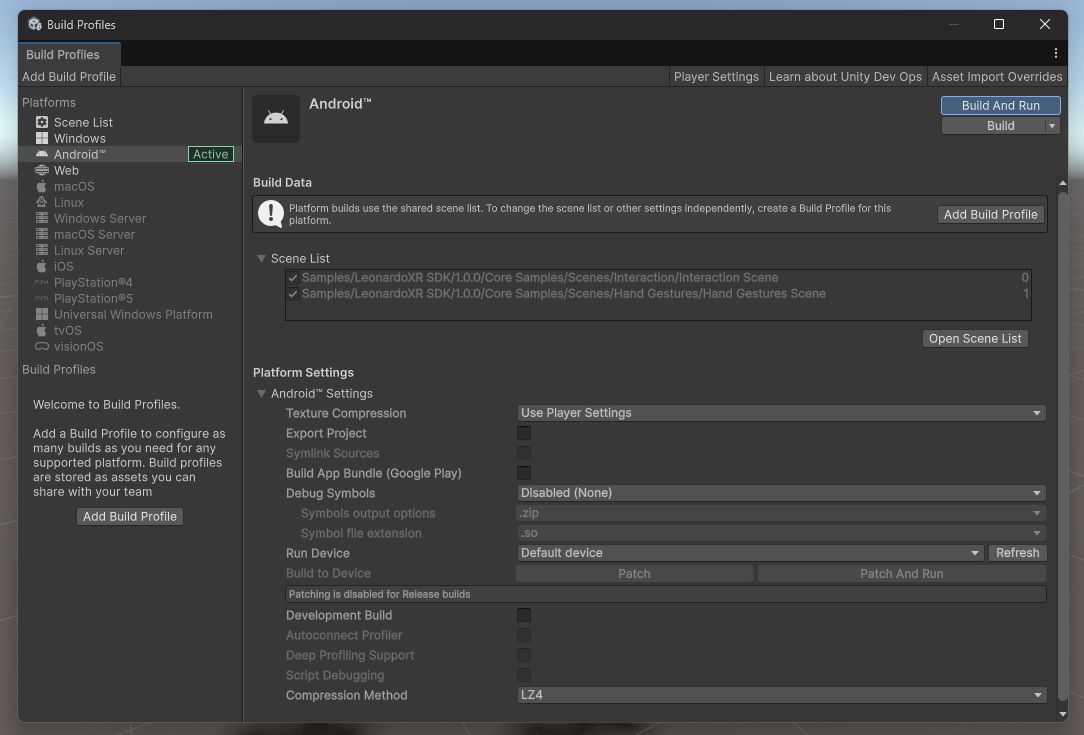
Select File – Build Settings… from the Unity main menu.
Make sure that the Interaction Scene and the Hand Gestures Scene are listed in the Scene List box.
In the Build Settings window, select your LeonardoXR in the Run Device field.
If your device is not showing up in the list, click on the Refresh button.
Click on the Build and Run button.

In the Build Android window enter SDKDemo.apk into the File name field.
Unity will start building the application.
Your SDKDemo app should launch on your LeonardoXR. If the app does not automatically launch, you can launch it manually in the Apps tray.

CONGRATULATIONS!
You have successfully built an app for the LeonardoXR. We are excited to see all of the amazing apps that you will create for the LeonardoXR!